GameChanger Troubleshooting Guide: The 12 Most Common Problems and How to Fix Them
GameChanger is the most widely used scorekeeping app in youth baseball for a reason, but that does not mean it always works. At some point you WILL be standing behind a backstop at 10:47 AM watching the livestream drop, or the app crash, or your stats refuse to sync, and wondering whether you should just abandon the inning and restart everything.
Almost every GameChanger problem has a fix that takes under 60 seconds once you know it. This guide covers the 12 most common issues I see in youth baseball forums, Reddit threads, and on the field at my own kid's games, with step-by-step solutions for each.
See also: Best Cameras for GameChanger | Best Phone Mounts for GameChanger | GameChanger GoPro Setup Guide | How to Stream Your Kid's Baseball Games
Before You Start: The Universal First-Steps
Before you dive into the specific problem below, try these three fixes. They solve a surprising percentage of GameChanger issues.
- Force-quit the app and restart it. On iPhone, swipe up from the bottom and swipe GameChanger away. Reopen. On iPad, same gesture. On Android, tap the recents button and swipe away.
- Confirm you are on the latest GameChanger app version. Go to the App Store or Play Store and check for an update. Stream and scoring issues are frequently caused by an older app fighting with an updated iOS or Android OS.
- Confirm you are on a stable internet connection. Most in-game GameChanger problems are actually internet problems. Switch off ballpark Wi-Fi and use your phone's LTE hotspot as the primary connection.
If those three steps do not fix it, find your specific issue below.
Problem 1: App Crashes or Freezes When Opened
Symptom: GameChanger opens to a white screen, a spinning wheel, or crashes back to the home screen within a few seconds.
Fixes (in order):
- Force-quit and reopen. (See universal steps above.)
- Update the app via App Store or Play Store.
- Restart the phone/tablet. Holding the power button and rebooting clears out whatever system-level state is blocking the app.
- Delete and reinstall the app. Your team roster and stats live in your GameChanger account, not on the device, reinstalling does not lose data as long as you know your login. (Check your email for your original confirmation before doing this if you are not sure.)
- Check iOS/Android version. GameChanger requires iOS 17 or newer, or Android 11 or newer. If your device cannot update that far, the app will not run reliably.
Problem 2: Livestream Keeps Dropping or Going Black
Symptom: The stream is live for a few minutes, then freezes, goes black, or shows "reconnecting..." Parents watching at home complain they cannot see anything.
Fixes:
- Switch to your phone's LTE/5G hotspot instead of ballpark Wi-Fi. This fixes 80% of stream drops. Ballpark Wi-Fi at tournaments is typically overloaded, your phone's cell connection is almost always better.
- Drop streaming quality to 720p when you set up the stream. GameChanger's guidance for external cameras is 7 Mbps or more of upload for 1080p and 4 to 7 Mbps for 720p, and a phone streaming from its own camera needs a little less. Run a speed test and read the upload number. Viewers on phone screens cannot tell the difference.
- Move the broadcasting device to a higher elevation. Chain-link fences and metal bleachers absorb cell signal. Mounting the phone at the top of the fence (not the bottom) gets better reception.
- Close all other apps on the broadcasting device. Anything running in the background (messages, email, other streaming apps) is competing for CPU and network.
- If using a GoPro, keep the phone running the hotspot close to the backstop. GameChanger notes a phone hotspot has limited range from the camera and recommends a dedicated hotspot. Also check the SD card: if it fills up, the stream cuts off when the recording stops.
Problem 3: Stats Are Not Syncing After the Game
Symptom: You finished scoring the game, hit "End Game," but the stats never appear in the team page, or they appear hours later with weird gaps.
Fixes:
- Check the "Pending Sync" banner in the app. GameChanger often queues the final sync and needs you to tap "Sync Now" or have a stable connection for 30+ seconds.
- Get back on Wi-Fi or strong cell signal. The app cannot sync without a connection. If you finished the game in a parking lot with no signal, the sync fails silently.
- Kill and reopen the app after you are back on a good connection. This forces the queued data to retry the sync.
- Manually "End Game" if the game is still shown as in-progress. Sometimes a crash mid-game leaves the game in a half-state that never syncs. Go to the game, tap the three-dot menu, and finalize it.
Problem 4: Camera/Phone Overheating Mid-Game
Symptom: iPhone or iPad shows a temperature warning or shuts off the livestream automatically. More common in summer or when the device is in direct sun.
Fixes:
- Move the device into shade. Even partial shade from a dugout roof or the backstop frame lowers the internal temperature significantly.
- Remove the phone case. Cases insulate the device and trap heat. Take the case off for the game; put it back in the car.
- Turn down screen brightness. The screen is one of the hottest components. Set brightness to 50% and enable auto-brightness.
- Enable Airplane Mode + Wi-Fi on the broadcasting device. Cell radios generate a lot of heat. If you are on hotspot-Wi-Fi from another phone, this is a huge heat reduction.
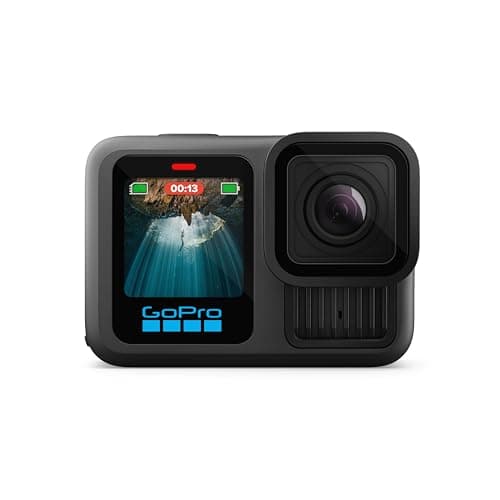
- If persistent, switch to a GoPro. GoPros are built for sustained operation in hot conditions and do not thermal-throttle the way iPhones do. Our GoPro setup guide walks through the rig.
Problem 5: Battery Dying Mid-Game
Symptom: Phone is at 80% in the first inning, dead by the fifth. Stream drops because the device shuts off.
Fixes:
- Plug in a 10,000+ mAh USB-C power bank. This is non-negotiable for streaming. The broadcasting app pulls so much power that the phone is a net consumer even when plugged in; a bigger power bank buys more headroom.
- Verify the power bank is PD (Power Delivery) spec. A $12 no-name power bank trickle-charges and cannot keep up with a streaming phone. An Anker or Mophie 10K with PD can.
- Drop stream resolution to 720p. Less data to encode = less battery consumed.
- Airplane Mode + Wi-Fi (connected to a hotspot from another phone). Turning off cell radios extends battery significantly.
If you do not yet own a proper power bank, this is the single biggest quality-of-life investment you can make:
Shop Anker 10K Power Bank on Amazon
Problem 6: Cannot Start a Stream (or No 1080p Option)
Symptom: You cannot find a way to start a stream for your game, or the 1080p option is missing from the setup screen. This happens on iPhone and Android alike.
Fixes (in order):
- Check your streaming permission. For baseball and softball, any confirmed team member can stream by default, but staff can limit it to selected videographers. If the Record Video button is not there for you, ask a team admin to add you under Team, Team Permissions, Videographers.
- Check the event is on the schedule. Streams start from a game on the team's Schedule tab, and only staff can add events.
- Update the app and the phone. GameChanger needs iOS 17 or newer, or Android 11 or newer, and it streams from both. Android is not the problem it used to be.
- No 1080p option? Some older iPhones and Android phones lack the processing power for 1080p, so GameChanger offers them 720p and 480p only. Back out of the setup and try once more; if 1080p still is not offered, stream at 720p, use a teammate's newer phone, or stream from an external camera like a GoPro, which sets its own resolution.
- Want a free public stream instead? Facebook Live and YouTube Live work from any phone. See our streaming options guide.
Problem 7: Wi-Fi / Hotspot Connection Issues
Symptom: The phone cannot connect to the ballpark Wi-Fi, or it connects but the stream keeps dropping. Or the hotspot from another phone keeps disconnecting.
Fixes:
- Always prefer your own LTE hotspot over ballpark Wi-Fi. Ballpark Wi-Fi is shared with hundreds of people and rarely sufficient for livestreaming.
- If using a hotspot from your phone, set it to 2.4 GHz (not 5 GHz). 2.4 GHz has longer range and better handles the interference at a ballpark. iPhone: Settings → Personal Hotspot → Maximize Compatibility ON.
- Keep the broadcasting device within 10 feet of the hotspot phone. If you are mounting the broadcasting iPad on the fence and the hotspot phone is in the bleachers 50 feet away, the Wi-Fi signal is too weak.
- Turn off and on the hotspot to force a fresh connection.
- Reboot the phone running the hotspot if the hotspot has been on for hours. Hotspot performance degrades over long sessions.
Problem 8: Audio Issues (No Sound, Echo, or Music Playing Over Stream)
Symptom: The stream has no audio, or has echoing/feedback audio, or your kid's Spotify is playing over the livestream.
Fixes:
- Close Spotify, Apple Music, YouTube Music, and any other audio app. If music is playing when you start the livestream, it gets broadcast along with the ambient sound.
- Check the microphone is not blocked. If the phone is in a waterproof pouch or has a case with a mic cover flap, the audio will be muffled.
- Disable Bluetooth on the broadcasting device. If you have AirPods or a Bluetooth speaker paired, the phone may be routing audio to the wrong place.
- If using a GoPro, the audio comes from the GoPro's own microphone, not the phone. A GoPro cannot mute a GameChanger stream from its settings; the workaround GameChanger documents is a mic adapter plugged in with no mic connected. If a GoPro stream has no sound at all, check that nobody left one plugged in.
- For echoing audio, the problem is usually that you have two separate streams open watching the game, one person's audio is being re-broadcast through another. Close all other watcher sessions on your own phone and network.
Problem 9: Cannot Log In / Forgot Password
Symptom: You know your email but GameChanger says it cannot find the account, or the password is wrong.
Fixes:
- Use "Forgot Password" on the login screen. The reset email should arrive within a few minutes (check spam folder).
- Check if you originally signed up with Apple, Google, or Facebook. If you used a social login, you need to log in the same way, email/password will not work for social-login accounts.
- If email is definitely correct but reset email never arrives, contact GameChanger support. Account merging across devices sometimes breaks and needs manual intervention.
- For family plan issues (can't share access with a spouse or kid), check that all devices are logged into the same paid account. Family plan shares access, but only if linked properly in account settings.
Problem 10: Roster or Lineup Not Saving
Symptom: You set up a roster or batting order, close the app, come back later and it is gone or reverted.
Fixes:
- Confirm you hit Save/Done. GameChanger does not auto-save in-progress edits on some screens. Tap the save button explicitly.
- Check the internet connection. Roster changes sync to the server; if the sync fails, the change reverts on the next app load.
- Clear the app cache (Android only) via Settings → Apps → GameChanger → Storage → Clear Cache. Does not affect account data.
- For lineup-specific issues, build your lineup in the Dugout Edge free Lineup Generator first, then transfer it over. The DE tool handles lineup rules (pitchers, defensive mins, batting fairness) and gives you a clean paper backup.
Problem 11: Pitch Count or Stats Tracking Is Wrong
Symptom: After the game, the pitch count does not match what your pitcher actually threw, or a batting stat looks wrong.
Fixes:
- Tap directly into the game log to review every pitch and play. GameChanger lets you edit any individual entry.
- Check for duplicate plays or missing plays. Sometimes a misclick creates a ghost pitch or a missed tap drops a play.
- Use the "Undo" button aggressively during the game: GameChanger remembers a long undo history. Better to undo and re-enter than to wait and edit later.
- For pitch count specifically, cross-check with our free pitch count tracker. If the two disagree, the standalone tracker (which has no scoring noise) is usually correct.
Problem 12: Parent Cannot See the Livestream (Paid-Subscriber Issue)
Symptom: You are broadcasting successfully, but a parent says they cannot see the stream or are being asked to pay.
Fixes:
- Confirm the parent has a GameChanger premium subscription. Free-tier viewers see only text-based play-by-play, not the video. Premium is $9.99/month or $39.99/year.
- Check the parent is following your team in GameChanger. Following requires a team invite code, the coach generates this in settings.
- If parent has premium but cannot see the stream, have them force-quit and reopen the GameChanger app. Sometimes the subscription status does not refresh without a restart.
- Confirm the broadcast is actually live. On your broadcasting device, you should see a red "LIVE" indicator and a viewer count above 0. If you do not see "LIVE," the broadcast itself is not being sent.
- For parents who refuse to pay $9.99/month, consider switching to Facebook Live or YouTube Live as your primary stream. Free for everyone. See streaming options guide.
When to Just Call Support
Some problems are above your pay grade. Reach out to GameChanger's official support if:
- The app is permanently crashing on your specific device model after every fix above
- Account data is corrupted (wrong team, missing games, deleted rosters)
- You cannot access a paid subscription you have been billed for
- A pitcher's pitch-count compliance is wrong and affecting league eligibility
- Anything involving payment, billing, or refunds
Support is at support@gc.com or through the in-app help center. Response times are typically 24-48 hours on weekdays.
Pre-Game Checklist: Prevent 80% of Problems
Run through this list the night before every game, and you will avoid the vast majority of the issues above.
- GameChanger app is up to date on every device you will use
- Broadcasting device (iPhone/iPad) is charged to 100%
- Power bank is charged to 100% and has USB-C cable packed
- Phone mount or tripod is packed and functional
- Hotspot phone has enough data budget for 2-3 hours of streaming (about 3-4 GB at 720p)
- Roster is updated and all players are marked active
- Starting lineup is set and saved
- League-specific pitch count rules are configured correctly
- Designated broadcaster knows how to start the stream (not the same person as the scorer if possible)
Ready to Upgrade Your Rig?
Many of these problems are caused by under-built rigs, a phone without a power bank, a tripod that wobbles, or a camera that overheats. If you are tired of fighting your GameChanger setup, these guides cover the fixes:
- Best Cameras for GameChanger: iPhone, iPad, and GoPro options compared, with pros/cons for each
- Best Phone Mounts for GameChanger, fence clamps, tripods, and iPad-specific mounts
- GameChanger GoPro Setup Guide: the full rig for hot-weather and long-tournament streaming
- How to Stream Your Kid's Baseball Games, alternative streaming platforms if GameChanger keeps failing you
And if GameChanger is genuinely not the right tool for your team, our Best Baseball Scorekeeping Apps guide reviews the free and paid alternatives. That includes our own Game Day scoring app, which is free, opens in a browser with no account, and puts nothing behind a parent subscription.
Tags
Score Your Next Game Free
Game Day scores live from your phone: runs, outs, baserunners, pitch counts. Free, in your browser, no account needed to start.
Try the Free Scoring App